Homepage is a modern, customizable dashboard app designed to be your central hub for managing services, monitoring systems, and quick access to tools. It runs as a lightweight Docker container and integrates with over 100 services out of the box.
I usually don't add my 2-cents in these guides but I will here. I don't think Homepage is good for the casual user. Its configuration is manual, I found it pretty difficult to get working correctly and I found the instructions confusing. I still have issues with it (I outline below). If you've got this to work, please Contact Me so I can update my guide.
This guide will get it installed and show you some of the basics for configuring it.
sudo apt update && sudo apt upgrade -ycurl -fsSL https://get.docker.com -o get-docker.sh sudo sh get-docker.sh
sudo apt install docker-compose-pluginsudo usermod -aG docker $USERsudo systemctl enable dockersudo rebootdocker run hello-worldmkdir ~/docker mkdir ~/docker/homepage
In ~/docker/homepage create docker-compose.yml
services:
  homepage:
    image: ghcr.io/gethomepage/homepage:latest
    container_name: homepage
    ports:
      - 3030:3000
    environment:
      - HOMEPAGE_ALLOWED_HOSTS=*
    volumes:
      - ./config:/app/config
      - ./images:/app/public/images
      - /var/run/docker.sock:/var/run/docker.sock:ro
    restart: unless-stopped
From within ~/docker/homepage run:
docker compose up -d
docker logs homepage
Open your browser and go to "http://<192.168.xx.xx>:3030.
Here's the official Homepage configuration pqge: https://gethomepage.dev/configs/
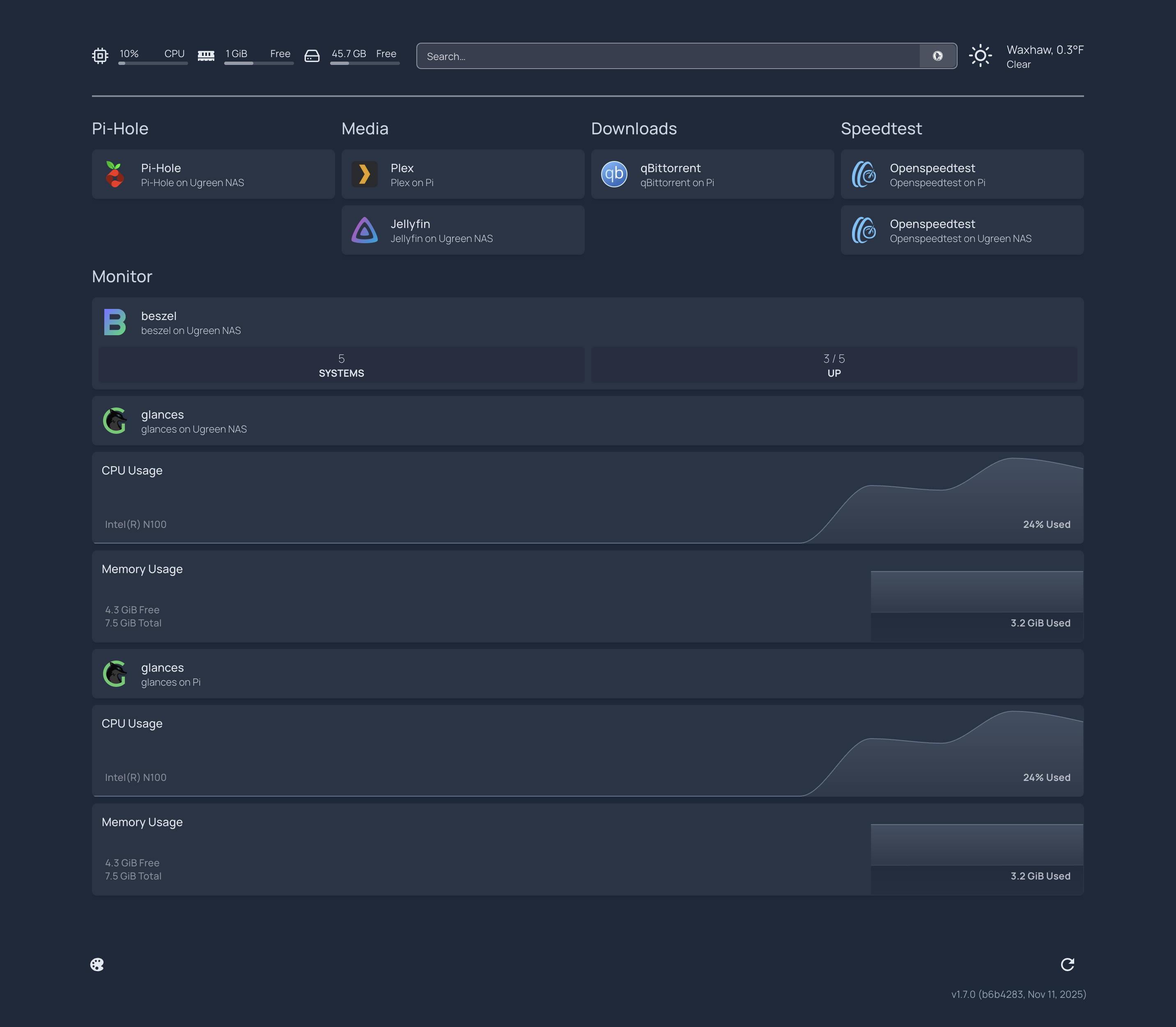
Here's my layout at the time of writing this (click to expand):
Note that my "glances on Ugreen NAS" and "glances on Pi" show the exact same statistics. This is when I gave up messing with it.
As I mentioned above, configuration is manual. You have to edits services.yaml in ~/docker/homepage/config. Here's what mine looks like:
- Pi-Hole:
    - Pi-Hole:
        href: http://192.168.xx.zz:8080/admin
        description: Pi-Hole on Ugreen NAS
        icon: pi-hole.png

- Media:
    - Plex:
        href: http://192.168.xx.yy:32400
        description: Plex on Pi
        icon: plex.png
    - Jellyfin:
        href: http://192.168.xx.xx:8096
        description: Jellyfin on Ugreen NAS
        icon: jellyfin.png

- Downloads:
    - qBittorrent:
        href: http://192.168.xx.yy:8888
        description: qBittorrent on Pi
        icon: qbittorrent.png

- Speedtest:
    - Openspeedtest:
        href: http://192.168.xx.yy:3000
        description: Openspeedtest on Pi
        icon: openspeedtest.png
    - Openspeedtest:
        href: http://192.168.xx.xx:44875
        description: Openspeedtest on Ugreen NAS
        icon: openspeedtest.png

- Monitor:
    - beszel:
        href: http://192.168.xx.xx:8095
        description: beszel on Ugreen NAS
        icon: beszel.png
        widget:
          type: beszel
          url: http://192.168.xx.xx:8095
          username: jrmckins@yahoo.com
          password: Mcjim011
          #systemId: systemId # optional
          version: 2 # optional, default is 1
    - glances:
        href: http://192.168.xx.xx:61208
        description: glances on Ugreen NAS
        icon: glances.png
    - CPU Usage:
        widget:
          type: glances
          url: http:///192.168.xx.xx:61208
          version: 4
          metric: cpu
    - Memory Usage:
        widget:
          type: glances
          url: http:///192.168.xx.xx:61208
          version: 4
          metric: memory

    - glances:
        href: http://192.168.xx.yy:61208
        description: glances on Pi
        icon: glances.png
    - CPU Usage:
        widget:
          type: glances
          url: http:///192.168.xx.yy:61208
          version: 4
          metric: cpu
    - Memory Usage:
        widget:
          type: glances
          url: http:///192.168.xx.yy:61208
          version: 4
          metric: memory
I have one glances for my Ugreen NAS and one for my Pi. I'm using two distinct IP address (one for NAS, one for Pi), yet it's showing the statistics from the NAS for both of them. If anyone knows what I'm doing wrong, let me know.
Across the top of the screen, you'll see some widgets. I have some stats from the host I'm running Homepage on, a search bar (it uses duckduckgo be default. You can change it to google by changing duckduckgo to google), and my local weather. To set these up, edit the widgets.yaml file in ~/docker/homepage/config. This is mine:
- resources:
    cpu: true
    memory: true
    disk: /

- search:
    provider: duckduckgo
    target: _blank

- openmeteo:
    label: Waxhaw
    latitude: 34.92
    longitude: 80.74
    cache: 5
You can find more informtion on configuring widgets here: https://gethomepage.dev/configs/info-widgets/.
I tried getting the docker integration working, but ended up giving up. The instructions are here, but nothing I tried would work: https://gethomepage.dev/configs/docker/.
If you find my content useful, please consider supporting this page: